Introduction and Basics of ASCN.AI
Written By Team ASCN.AI
Last updated 10 months ago
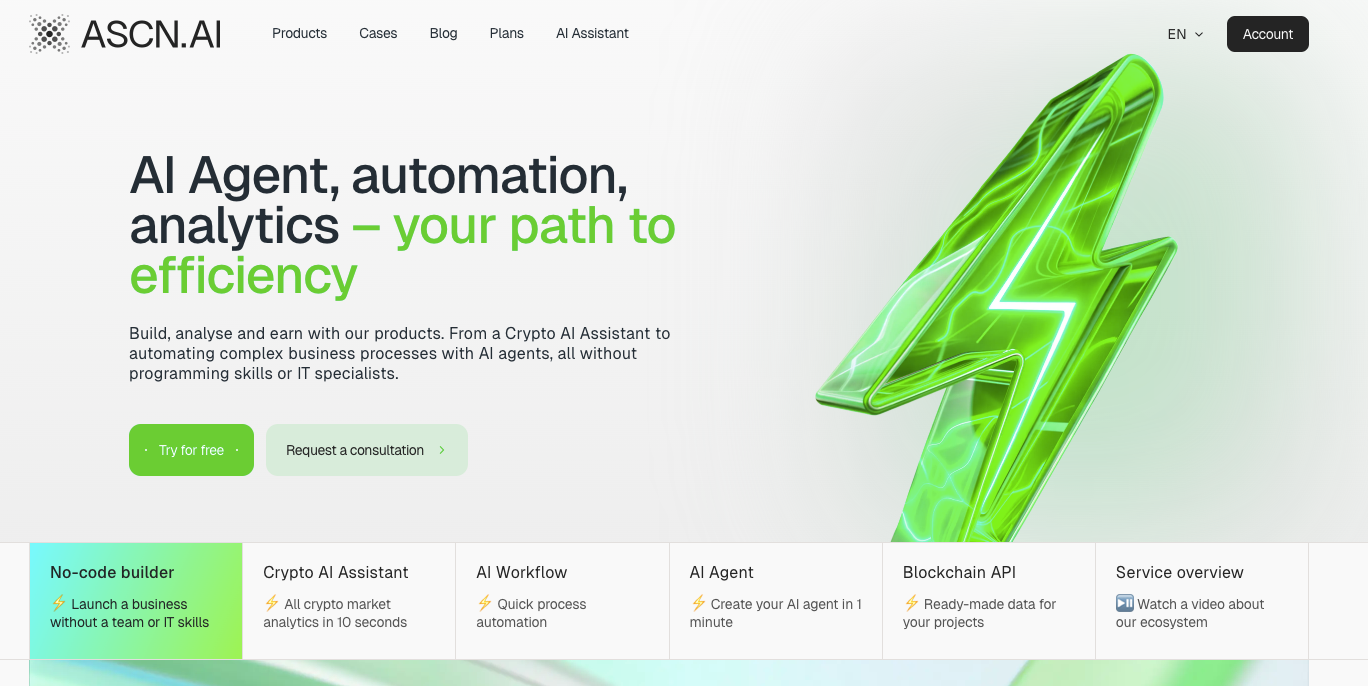
1.1 What is ASCN.AI NoCode and why is it needed?
ASCN.AI NoCode is a no-code platform for automating business processes: AI workflow, AI agents, and integrations that allow you to launch processes “from chat” without programmers
AI Workflow is a smart step-by-step plan that is executed automatically using artificial intelligence. Unlike simple automation (e.g., “check the weather once an hour”), the AI within such a scenario can “think” and make decisions on the fly.
AI Agents are AI-based virtual employees who can be given complex tasks and will perform them independently, without your constant supervision. They decide for themselves what steps to take to achieve the goal.
Integrations are a way to make different programs and applications “talk” to each other and work as a team. Thanks to this, data automatically flows from one application to another, and you don't have to do it manually.
You can also find all terms here.
The main goal of NoCode is to enable businesses to launch automation and AI projects without an IT team, using a no-code builder and ready-made workflows.
Key benefits:
Quick launch of automations from ready-made workflows (finance, sales, analytics, HR, marketing)
No-code workflow and AI agent editor + API and white-label infrastructure for your products
Time savings: workflows save thousands of hours per month by automating reports, sales, and internal processes
Key scenarios only about no-code:
Finance: automated reporting, departmental limit control, optimization of “small expenses,” cash flow forecasting, reminders about profitable repayments
Sales: AI manager assistants, automatic call and chat summaries, recording of extracts in CRM, automatic requests to production after a deal
Marketing: auto-generation of leads and outreach, personalized touches, content preparation
Operations/HR: communication monitoring, team reports, risk and issue notifications
1.2 Getting started with NoCode
The very first step is to register an account with ASCN.AI. You can complete the registration process here.
Log in:
Next, we arrive at the main menu, where we can find all ASCN.AI products, as well as our NoCode Builder.
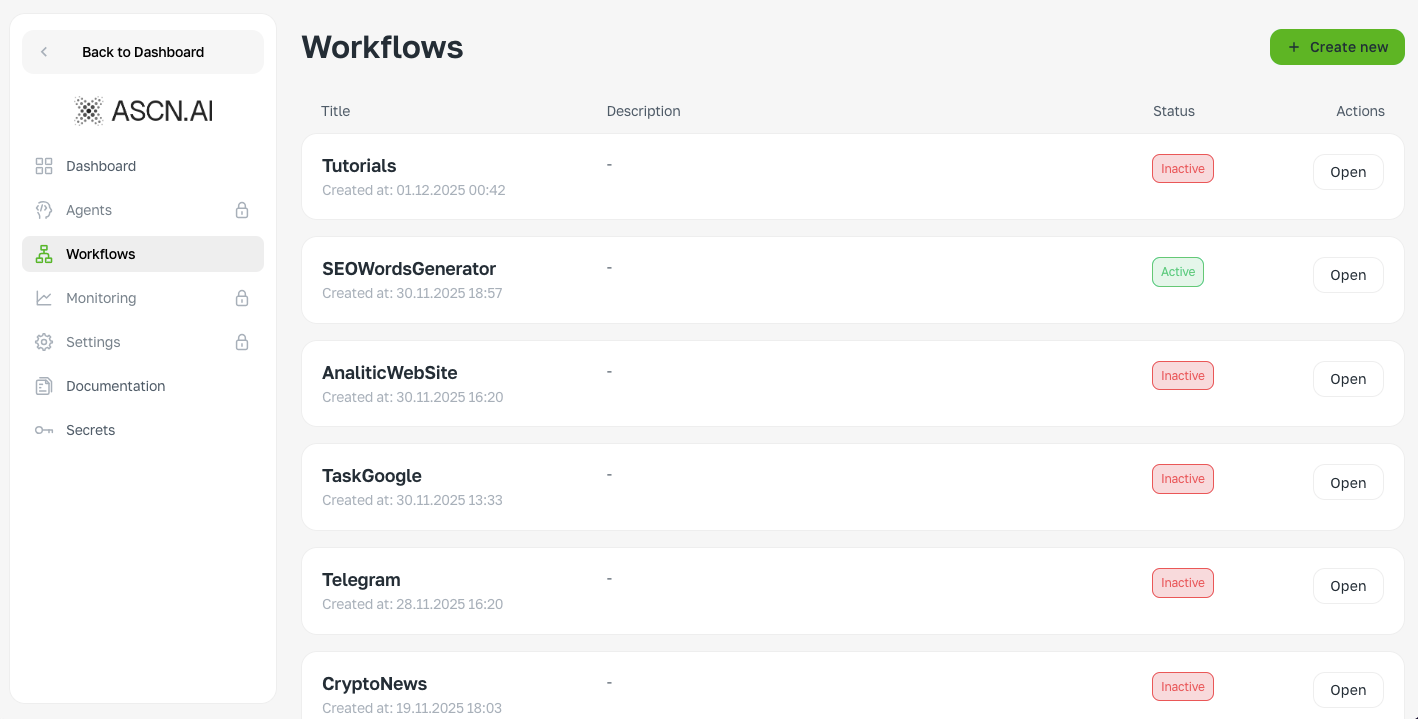
Next, go to the Workflows window—this is the starting point for thousands of business automations. This is where your automations will be stored.
We will also examine the Secrets window, where SecretsKey will be stored and created, which are necessary for the secure storage of your TokenAPI / APIKey, etc.
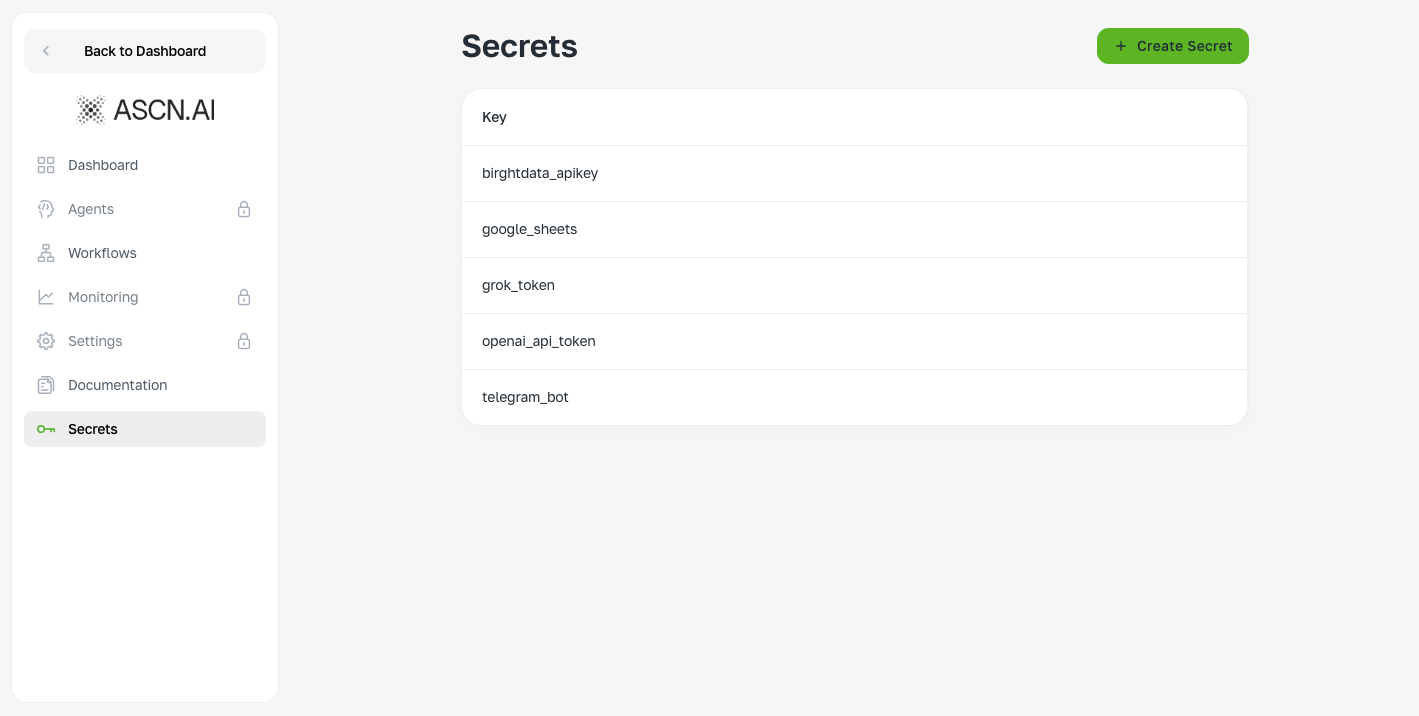
Secrets Key is your secret password for applications and programs. Just as you would not give anyone your email password, you should not show this key to anyone, because it gives access to your data and services on the internet.
Token API is a temporary digital pass that you receive after entering your login and password. This pass is valid for a limited time and allows you to perform actions without having to enter your password again and again.
API Key is a unique key for accessing a “box” of data or services (for API or MCP). It is not linked to you personally, but to your project or application. It is often used to obtain general, rather than personal, information.
And finally, the Documentation window is the ASCN.AI knowledge base window, which will provide answers to most questions.
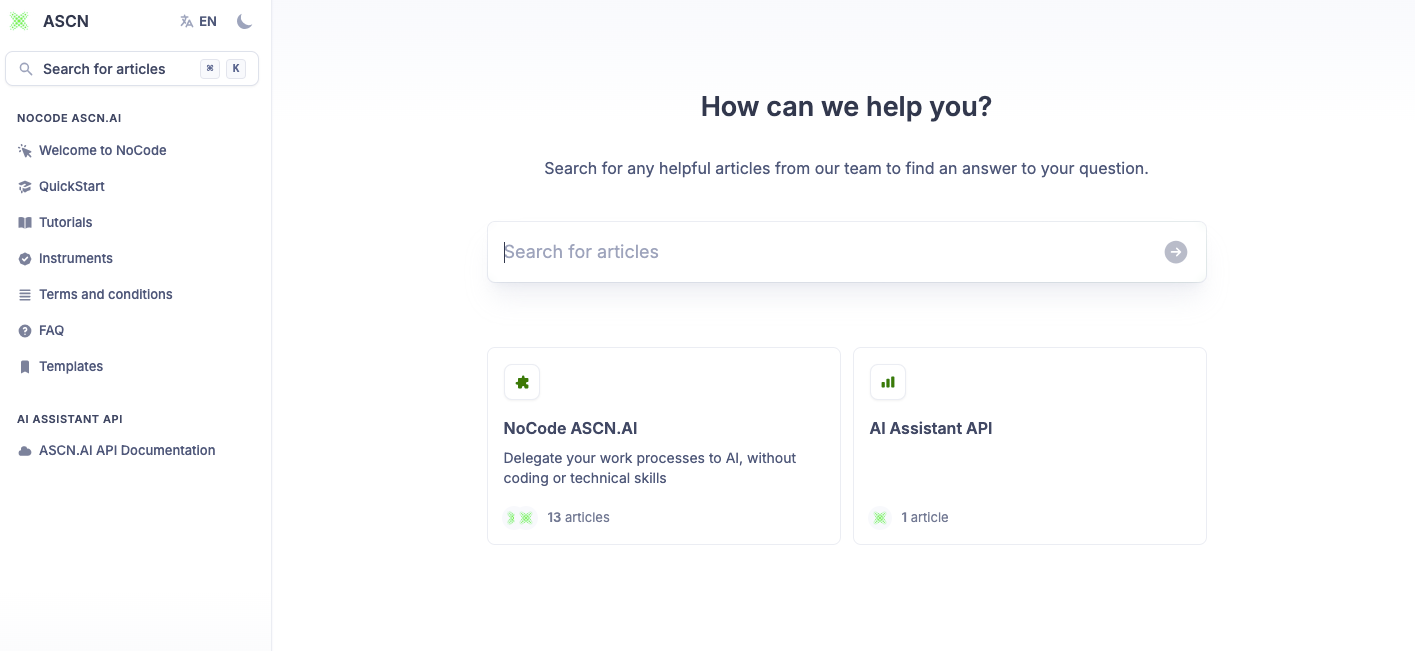
1.3 Fundamental concepts
The main concepts of no-code:
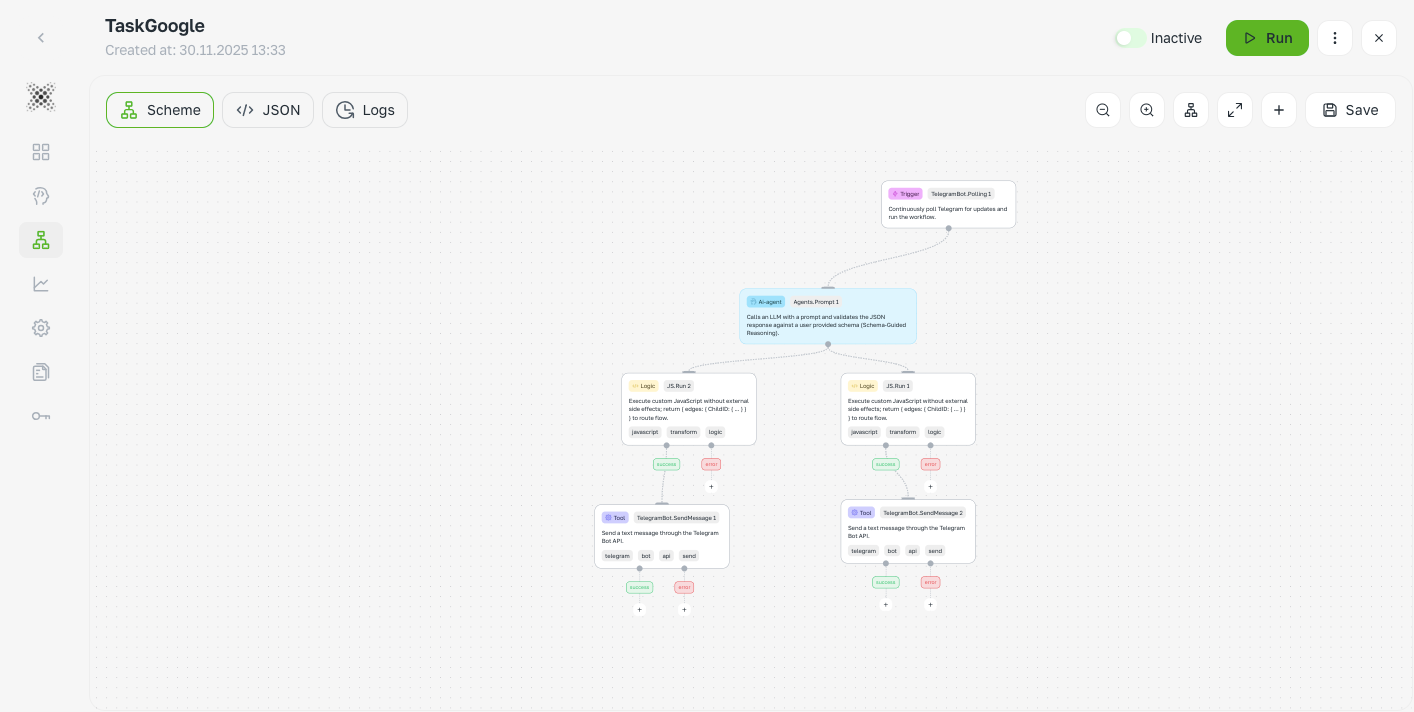
Workflow is a visual instruction diagram for a computer, which you assemble like a construction set made of cubes (nodes). It shows what to do and in what order.
AI agent is a virtual employee with artificial intelligence that can perform complex tasks requiring “intelligence” — analyzing, making decisions, and generating text.
Integration is a way to make different programs “work together” and exchange information automatically.
Trigger is the “start button” for your script. The trigger waits for an event to occur and then starts the entire process.
Nodes are different types of “cubes” from which you assemble your scenario. Each cube can do something unique.
Arrow connections between cubes that show the data path and execution order
1.4 Practice: First scenarios
You can assemble your first automations in the QuickStart section.
Here, we will examine the main interface and assemble a couple of nodes.
Let's start with the fact that each Workflow has two states: Active/Inactive
Active - the workflow is running and all integrations are already working. You are already using it and getting benefits
Inactive - the initial state of any workflow. In this state, the workflow is not running and needs to be started.
This state is necessary for building the workflow, as well as for disabling it when it is not needed but needs to be saved
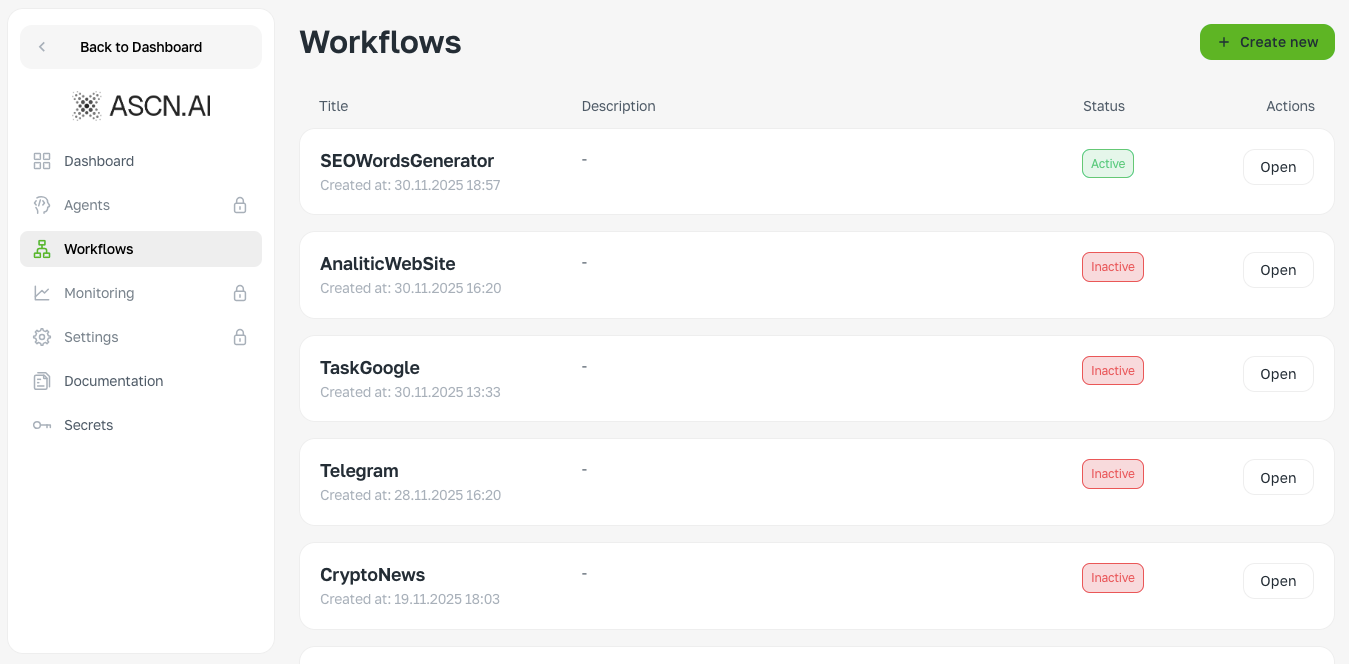
To create a new automation, click Create New and enter the name of your workflow (you can change it later).
This will take you to your workspace (it will be empty):
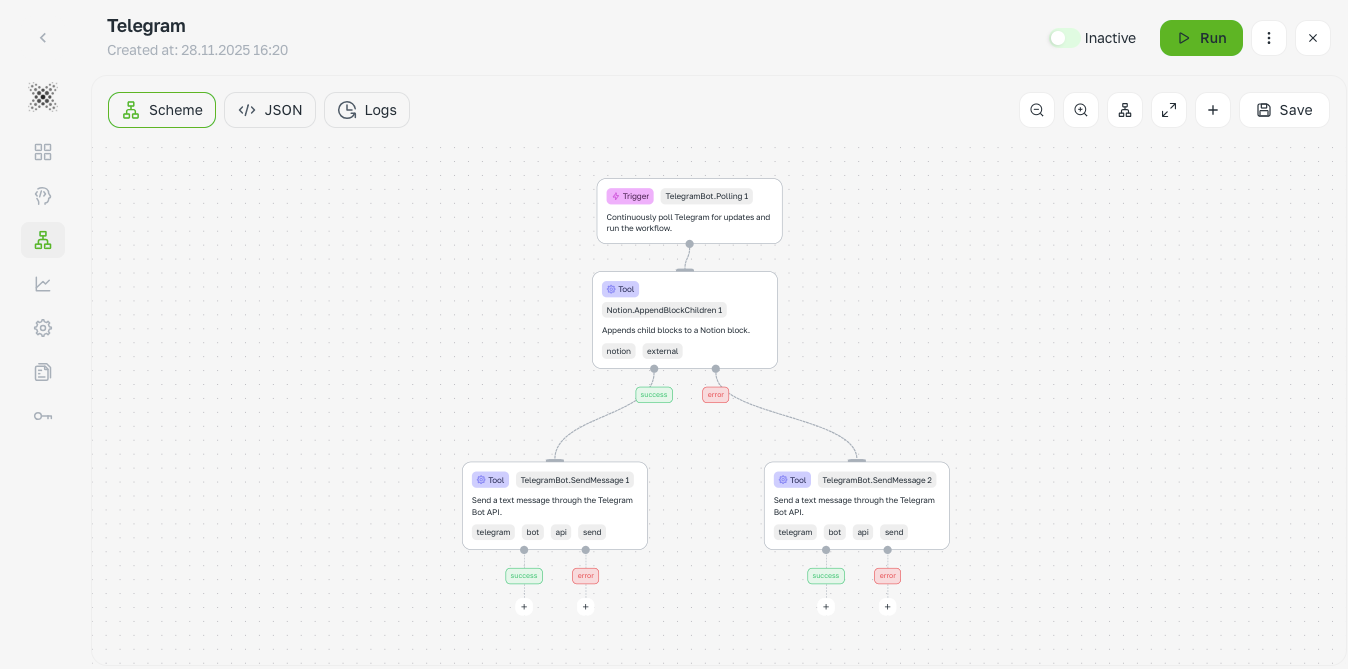
Let's break down the main elements:
Nodes are blocks that perform specific tasks: delete, write, send, receive, etc.
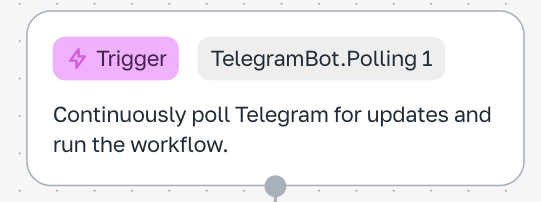
Сonnection is a link between two (or more) nodes. It determines which node follows (is launched) after which, as well as what data is transferred between the nodes.

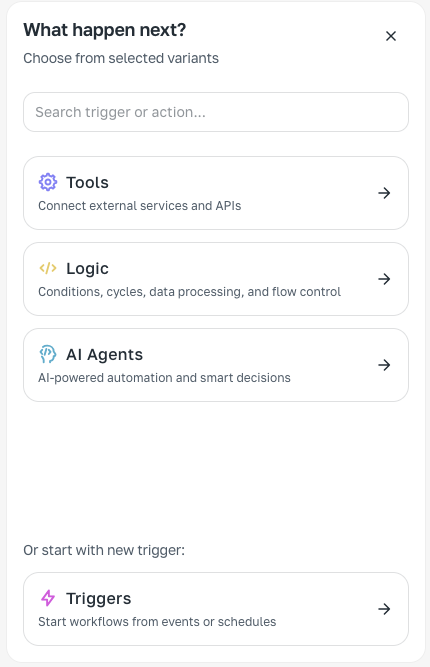
Node menu - here you will find over a hundred nodes that will solve any task you have and allow you to build any automation. If you don't know which node you need, write a rough description of the result you want to achieve, and we will select an option for you.
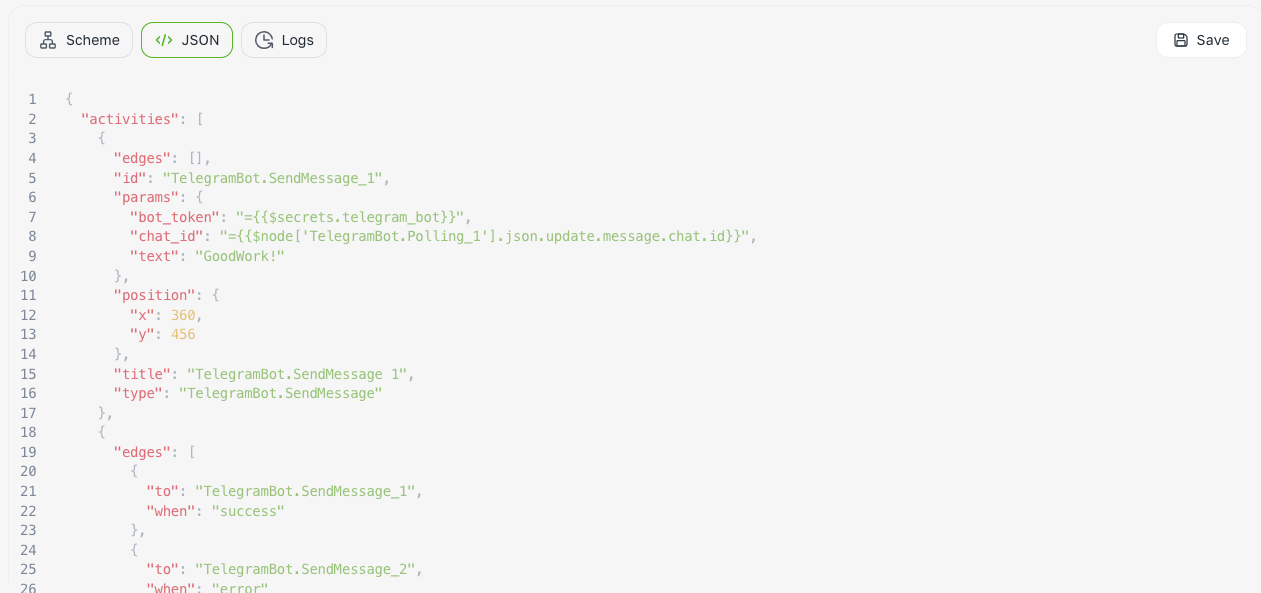
JSON is a constructor. It is not generally useful and is only required for developers who do not use NoCode and prefer to develop using JSON. DO NOT TOUCH ANYTHING!
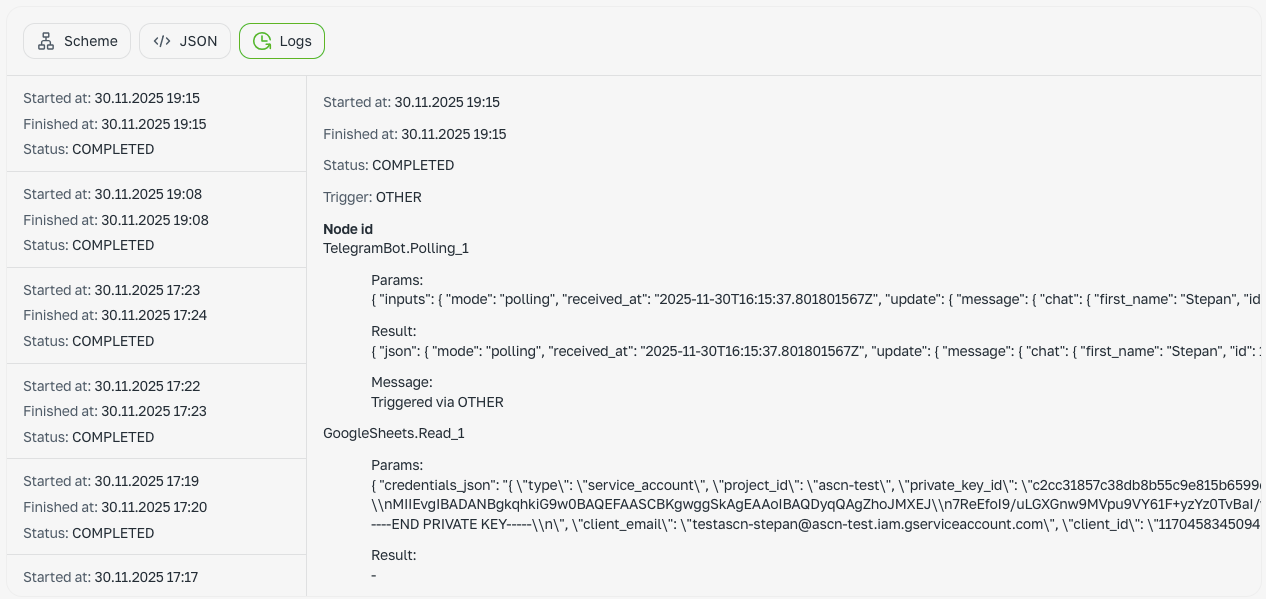
Log window - here you can track all the statuses of your workflow. When it was launched, what error occurred, why it occurred, what nodes were used, etc.
Our most frequent actions:
Adding a new node:
Creating a new node with a connection to an existing one:
Connecting two nodes:
Saving Workflow:
Workflow launch:
Adding SecretKey
Using variables