Universal Http Request and JavaScript Run Nodes
Written By Team ASCN.AI
Last updated 10 months ago
HTTP Request
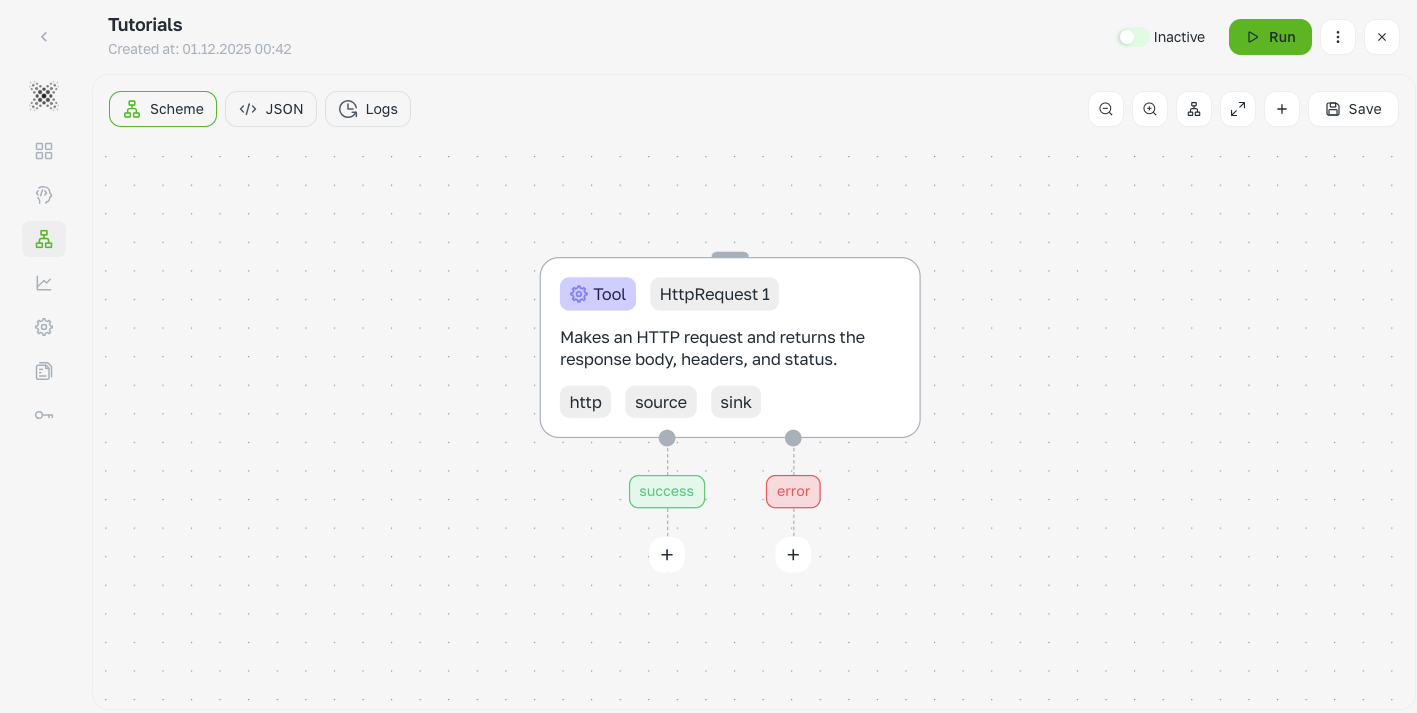
An HTTP request is a universal way to send a request or receive data from any other service on the internet. If you imagine that different websites and services are different cities, then an HTTP request is your personal courier who can deliver a package to any of them and bring back a response.
How it works in practice:
Imagine that you need to:
Get the latest dollar exchange rate from a financial website
Send data about a new order to your CRM system
Check the availability of goods in stock
HTTP Request can handle all of this!
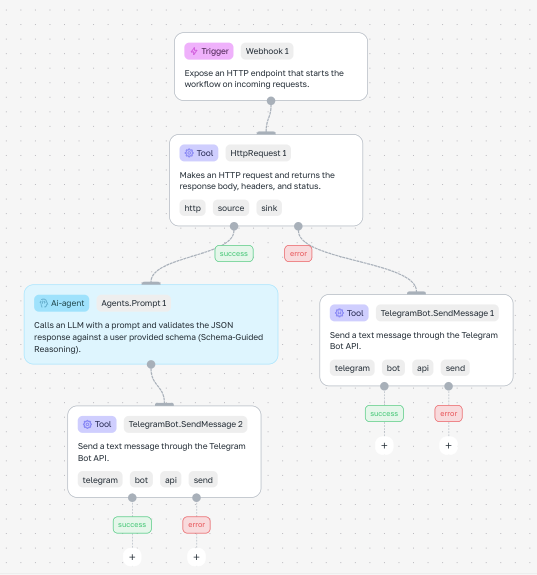
A simple analogy: It's like a universal “Contact any service” button. You press it and say:
“Where to send the request?” (this is the URL link)
“What to do?” (this is the type of request):
GET = “Go and get the information” (get the data)
POST = “Take and transfer the information” (send the data)
When is this especially useful: When you haven't found a ready-made connection to the service you need in the list of integrations, but you know that this service has a “door for receiving requests” (API). Through HTTP Request, you can knock on this door and get what you need.
In essence, this is your universal key for communicating with virtually any service on the Internet!
Node parameters and settings
1) URL

This is the exact address to which your request should be sent. Like a postal address for a letter, it shows which city, street, and apartment the information should be delivered to.
The URL consists of:
Domain or IP (City and street)
api.example.comis like “Moscow, Example Street”Indicates which server to send the request to
Path (endpoint) (Specific apartment or department):
/usersis like “apartment 25” or “customer department”Shows which specific server function we are addressing
Example of a full address:
https://api.example.com/usersTranslation: “Send a request to the server example.com in a secure manner, to the user support department.”
Important note!
If the documentation specifies an address with additional parameters: https://api.example.com/users?limit=5
Then the part ?limit=5 can be:
Specified directly in the link
Or added in a separate field of the Send Query params
Why do you need a URL?
So that the server understands exactly what information you want to receive or what action you want to perform. Without the correct address, your request will simply get lost on the internet!
2) Method
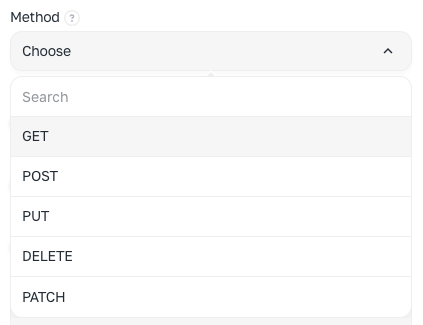
The method determines what action you want to perform with the data on the server. It is like a verb in a sentence—it tells the server what exactly needs to be done.
Basic HTTP methods:
GET — get the data How to say, "Please give me the information" Example: get a list of users, check the exchange rate, request order information
POST — create new data How to say, "Please accept this new information and keep it" Example: create a new order, send a message, add a customer to the database
PUT — completely update existing data How to say, "Please replace all the information with a new one" Example: completely update the user's profile, change all product information
PATCH — update a part of the data How to say, "Please change only some fields" Example: change only the user's email, update only the order status
DELETE — delete data How to say, "Please delete this information" Example: delete a user, cancel an order, erase a message
Important: In 95% of cases, you will use only GET or POST requests. GET - to receive information, POST - to send new information.
3) Send Query
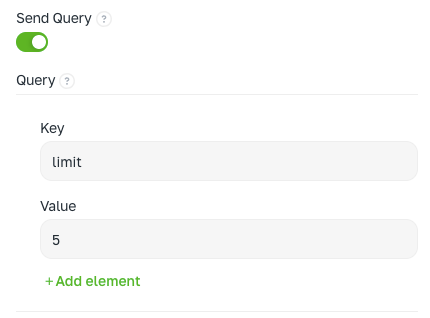
These are additional instructions to your request that help clarify exactly what data you need.
How Query parameters work:
Imagine that you are asking an assistant to bring you documents.:
Without parameters: "Bring all the documents"
With the parameters: "Bring only the financial statements for the last week, sorted by date"
Query parameters are just the same clarifications "financial only", "for the last week", "sorted by date".
How to add parameters:
You specify them in the Key = Value format.
A practical example:
If the address is specified in the documentation: https://api.example.com/users?limit=5
Then in the Send Query field you add:
Key:
limitValue:
5
This means: "show me only 5 users" instead of all at once.
What are Query parameters used for?:
Filtering — to select data according to certain criteria
Sorting — arrange the results
Search — to find specific information
The quantity limit - not to show all the data, but only part of it.
In fact, this is a way to make your query more accurate and get exactly the data you need.
4) Send Body
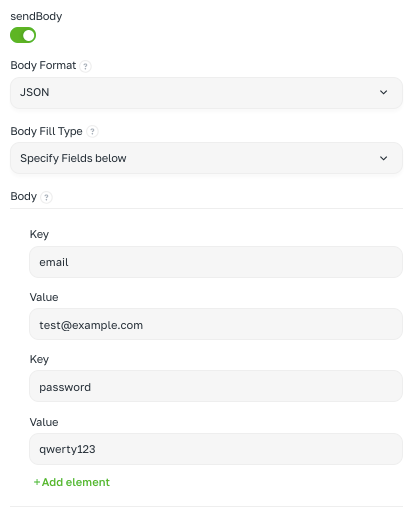
This is a way to send additional information along with your request when it cannot or is inconvenient to put it in the address bar (URL).
What can I do with the request body?:
Select the data transfer format:
JSON — the most popular format similar to structured text.
Form Data — how to fill out a form on a website
Form URL Encoded — simplified version of the form
Raw — arbitrary text
Выбрать способ заполнения (Body Fill Type):
Это определяет, как вам удобнее вводить данные:
Specify Fields below — удобный вариант через поля "Ключ-Значение"
Single input — простой вариант ввода готового текста в выбранном формате
Practical examples:
Example 1 (if you selected Single input → JSON):
{ "email": "test@example.com", "password": "qwerty123" }It's like sending a ready-made email with an already written text.
Example 2 (if you selected Specify Fields below):
Key: email
Value: test@example.com

Key: password
Value: qwerty123
It's like filling out a questionnaire — you enter each field separately.
When the request body is used:
Basic methods:
POST — when creating new data (user registration, adding a product)
PUT — when the data is fully updated
PATCH — for partial data updates
Important: In GET requests, the body is almost never used (data is transmitted via the address bar). But always check the documentation of the service you are accessing.
In fact: The request body is an envelope with data that you send along with your request.
5) Send Headers
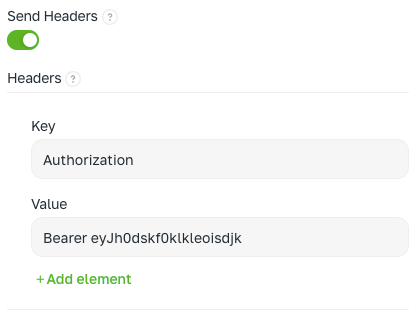
These are additional instructions and service data that help the server to properly understand and process your request.
What is contained in the headings:
The type of data being transmitted (in which format you are sending the information)
Expected response format (what format do you want to receive the response in)
Authorization token (your access rights)
Technical information about the request
Examples of frequently used headings:
Content-Type: application/json
Notifies the server: "I am sending data in JSON format"
Authorization: Bearer eyJh...
Informs the server: "Here is my data access pass (token)"
Accept: application/json
Notifies the server: "Please send the response in JSON format too"
How to add headers:
You fill them out in the Key = Value format.
Example of adding authorization:
Key: Authorization
Value: Bearer eyJh0dskf0klkleoisdjk
Why do we need headlines?:
They ensure correct interaction between your system and the server. Without the correct headers, the server may not understand what you want from it, or it may refuse access to the data.
It's like filling out the accompanying documents for a package to be sent — without them, the package may get lost or it won't be accepted.
6) Inline response limit

This is a setting that limits how much data you will see on the screen after receiving a response from the server.
How it works:
Imagine that you have received a very long document, but your text editor shows only the first 10 pages — not because there is no rest, but because it is more convenient to work that way.
If the response exceeds the set limit:
Some of the data will be hidden
You will see only the beginning of the information.
This is necessary for the stable operation of the interface.
It is important to understand:
The full response from the server comes in its entirety
Only a limited part is displayed on the screen
The limit only affects the display, not the data itself.
A practical example:
If the limit is set to 1,000 characters, and the server has sent 5,000 characters:
You will see only the first 1000 characters in the interface.
All 5000 characters are actually received by the system
To see the full data, you need to increase the limit or copy the response to another editor.
In fact: This is like limiting the preview of a file — the file is there in its entirety, but only a part of it is shown on the screen for ease of viewing.
7) Request timeout (s)

This is the maximum time we are willing to wait for a response from the server. If the server does not respond during this time, the request is automatically canceled.
How it works:
Imagine that you are calling a friend and waiting for him to pick up the phone.:
If he picked up the phone quickly, the conversation took place.
If he doesn't pick up the phone for 30 seconds, you hang up.
Timeout is the same 30 seconds of waiting.
Examples of time settings:
5 seconds is the standard time for most operations
30 seconds is for long operations (for example, report generation or complex calculations)
Why is this necessary?:
Detects problems with the server if the server is constantly unable to respond.
Prevents hanging — your application will not "hang" indefinitely.
Notifies you of an error — if the time is up, you will know about it immediately.
What happens during a timeout?:
When the timeout expires, the system reports: "Timeout error — The server did not respond in the allotted time."
In fact: This is insurance against the endless waiting for a response from the server.
Practical examples
Example 1: Getting data from the CRM API that is not available in the standard integration
CRM does not provide the required field through the built-in modules. For example, you need to pull up the product card or the delivery status, but the built-in nodes do not allow it. Solution: HTTP Request directly to the API.
Parameters:
URL: https://api.example.com/products/1223
Method: GET
SendQuery: none
SendBody: none
SendHeaders:
Key: Authorization
Value: Bearer <API_TOKEN>
Inline response limit: none
Request timeout (s): 5
Expected result:
Getting data that cannot be obtained by standard nodes.
JSON example:
JSON
{
   "id": 1223,
   "name": "XYZ Smartphone",
   "status": "in stock",
   "price": 1200
}
Example 2: Checking the validity of an e-mail before uploading it to the database
Marketing is losing money due to invalid e-mail newsletters. The HTTP Request accesses an external e-mail verification service.
Parameters:
URL: https://api.hunter.io/v2/email-verifier
Method: GET
SendQuery:
Text
Element1
Key: email
Value: {{$node[TelegramBot.Polling1].update.text}}

Element2
Key: api_key
Value: <API_KEY>
SendBody: none
SendHeaders:
Key: Accept
Value: application/json
Inline response limit: none
Request timeout (s): 5
Expected result:
The service will return the verification result: whether the e-mail is valid
JSON example:
JSON
{
   "data": {
      "email": "test@test.com",
      "status": "valid",
      "score": 0.95
      }
}
Example 3: Sending new lead data to your own backend
There is no ready-made integration with a self-written CRM or website. You need to send the new lead's data to the backend automatically.
Parameters:
URL: https://myapp.com/api/new-lead
Method: POST
SendQuery: none
SendBody: JSON → Body Fill Type: Specify Fields below
Text
Element1
Key: name
Value: {{$node[Agent.Pormts1].data.name}}

Element2
Key: phone
Value: {{$node[Agent.Pormts1].data.phone}}

Element3
Key: plan
Value: {{$node[Agent.Pormts1].data.plan}}
SendHeaders:
Key: Content-Type
Value: application/json (please return the JSON)
Inline response limit: none
Request timeout (s): 5
Expected result:
The new lead's data has been successfully transferred to the backend.
JSON example:
JSON
{
   "status": "success",
   "leadId": 5421
}