Variables, Memory, and Databases
Written By Team ASCN.AI
Last updated 10 months ago
What are variables in ASCN.AI?
In simple terms: A variable is a “container” with a name that stores some information.
Imagine that your workflow is a conveyor belt where each step (node) performs its own task. Variables are like stickers with information that are passed from one step to another.
Why is this necessary?
So that the steps in your automation can exchange data and work as a team, even without knowing in advance what information will be coming.
How it looks and works in practice
Let's say you have a simple scenario:
Step 1 (Telegram bot): The user writes a message.
Step 2 (AI agent): It must analyze this message.
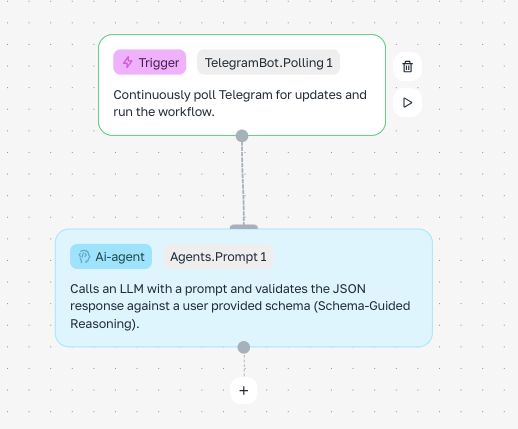
Without variables, the AI agent won't know what the user wrote.
With variables, we pass the message text from the first step to the second.
How to pass a variable (visually):
Data appears: When the “Telegram bot” step is executed, it ‘produces’ data (e.g., message text). The system automatically places it in a “container” with a meaningful name.
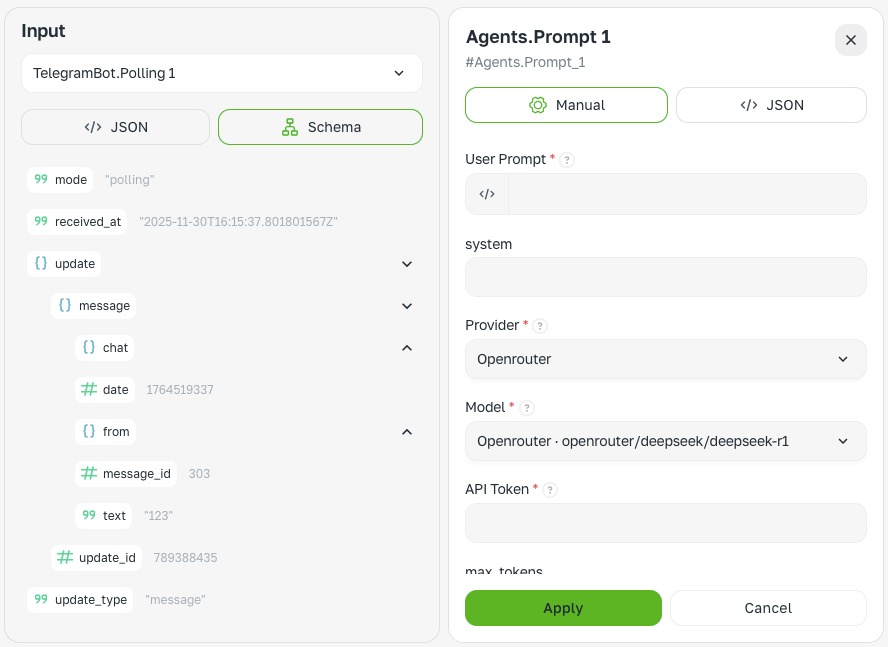
Select a variable: In the “AI agent” step settings, you will find a field where you need to insert the text of the message (for example, “User question”). Click on this field.
Activate variable mode: There is usually a button next to the field that switches the input mode to
Expressionor the=icon. This means “I want to insert a variable, not just text.”
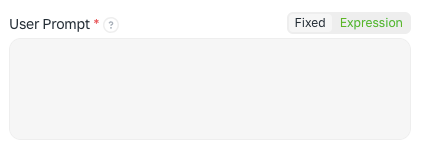
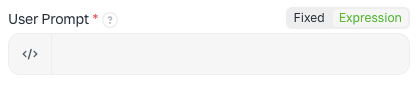
Insert a variable: From the list that opens, select the desired variable, for example,
Telegram message text. The system will automatically insert it into the field in a special format.
Special variable format
In the system, variables are written inside double curly brackets {{ }} and often begin with the $ sign. This is a special code that the system understands as a command: “take data from the specified location.”
Examples of such codes:
{{ $node[“AgentPromt1”].text }}— take text from the “AgentPromt1” step.{{ $json.update.id }}— take the ID from the received data.{{ $secrets.bot_token }}— take the bot's secret token.
The main thing to remember is that you don't have to memorize this code. Just use the interface to select the variable you need from the list, and the system will insert the correct code itself. This is the “connection” between nodes — an invisible thread through which data flows.
IMPORTANT! How to obtain data for variables
To make the variables and their values available in the node, you need to follow three simple steps:
Save the entire workflow
Click the “Save” button after configuring the nodes
Without saving, the system will not remember the structure of your scenario
Run the workflow
Either activate it for continuous operation
Or run it once for testing
The data will only appear after at least one execution!
Update the data in the node
After starting, go back to the node settings — the variables will appear in the list
If the data does not appear, reload the browser page
Why does this happen?
Imagine that you are filling out a questionnaire:
Saving — like sending the questionnaire for processing
Launching — like the processing itself, when data is collected
Updating — like receiving the completed questionnaire with the results
Without these steps, the system simply does not have time to collect and show you the data!
What are Secret Keys and how to work with them?
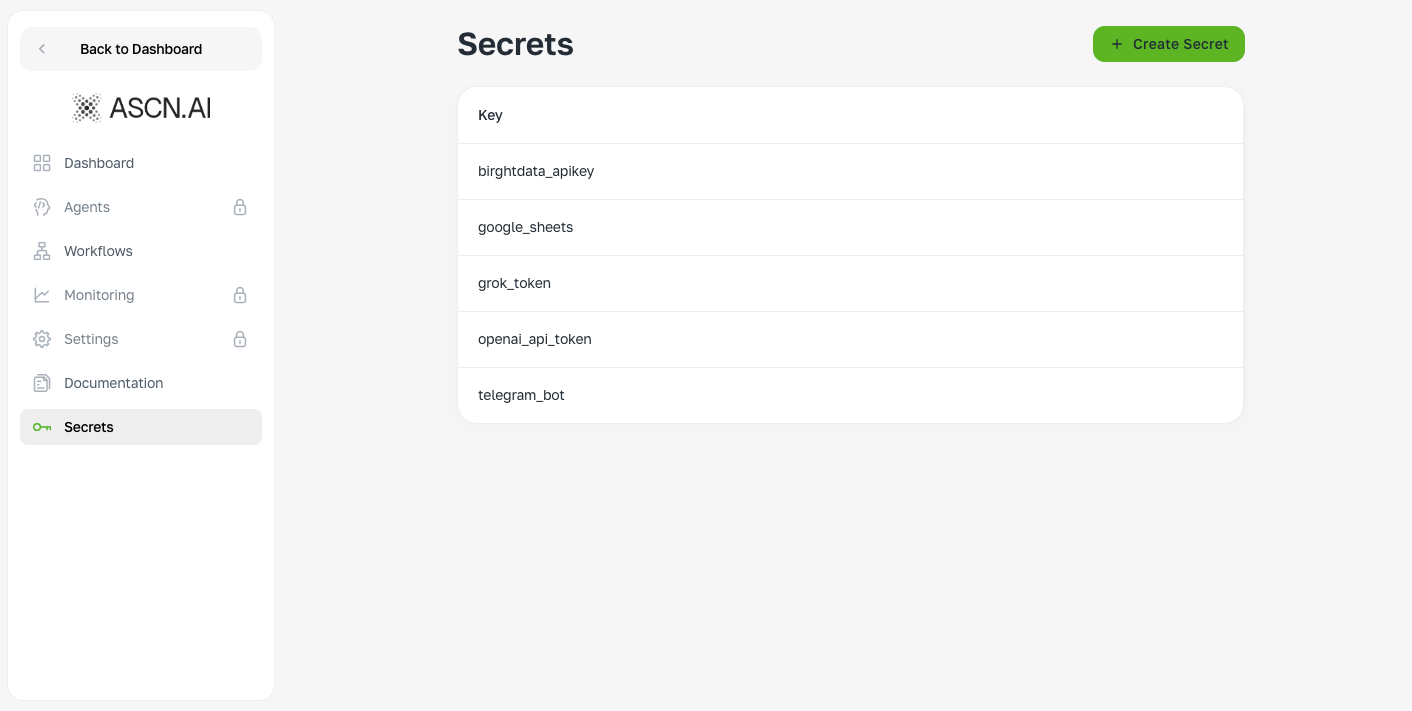
In simple terms: It's a safe for your passwords and important data.
Why you need it:
Security — tokens and passwords are not visible in workflow settings
Convenience — save once, use in all workflows
Secure sharing — you can share a workflow with a colleague without sharing your passwords
What to store in Secret Keys:
Tokens for API and AI services
Logins and passwords
Links to private servers
Account IDs
How to create a Secret Key:
Go to the “Secret Keys” section in the ASCN.AI menu
Click “Create Secret”
Fill in:
Name (for example,
openai_token)Value (your actual token)
How to use in workflow: {{ $secrets.name_of_your_key }}
Examples:{{ $secrets.bot_token }} — token for Telegram bot{{ $secrets.openai_token }} — key for OpenAI{{ $secrets.my_password }} — your password
Quick cheat sheet on variables and secrets
The main rule: Keep all personal tokens and passwords only in Secrets!